
Every now and then a piece of gear shows up that genuinely surprises me, and the EPOMAKER Carbonis did exactly that the moment I picked it up.
This thing is unbelievably light, wrapped in a real carbon fiber shell, and packed with features I didn’t even know I wanted.
EPOMAKER sent this mouse over for review, so a quick disclosure up top before we dig in. That said, I’m going to give you my honest, unfiltered take, warts and all.
I’ve been hammering on the Carbonis at my desk for a while now, mostly in Path of Exile 2 and I’ve got a lot to say. Let’s get into it.

Featherlight and Built From Carbon Fiber
The headline feature here is the weight. The Carbonis comes in at roughly 50 grams, and it is easily the lightest mouse I have ever used.
For context, my daily productivity mouse is the Logitech MX Master 4. When I switch back to it after a session with the Carbonis, the MX Master 4 honestly feels like it’s made out of lead.
That lightness pays off the most during long gaming sessions. There’s far less fatigue, and quick flicks and repositioning feel effortless.
The secret is the composite carbon fiber shell. This is an upgrade over EPOMAKER’s older CarbonX mouse, which used a lattice style frame to cut weight.
The Carbonis uses a solid carbon fiber body instead, and the result is a mouse that’s both ultra light and seriously rigid. There’s no creaking and no flex, even when I squeeze it hard.
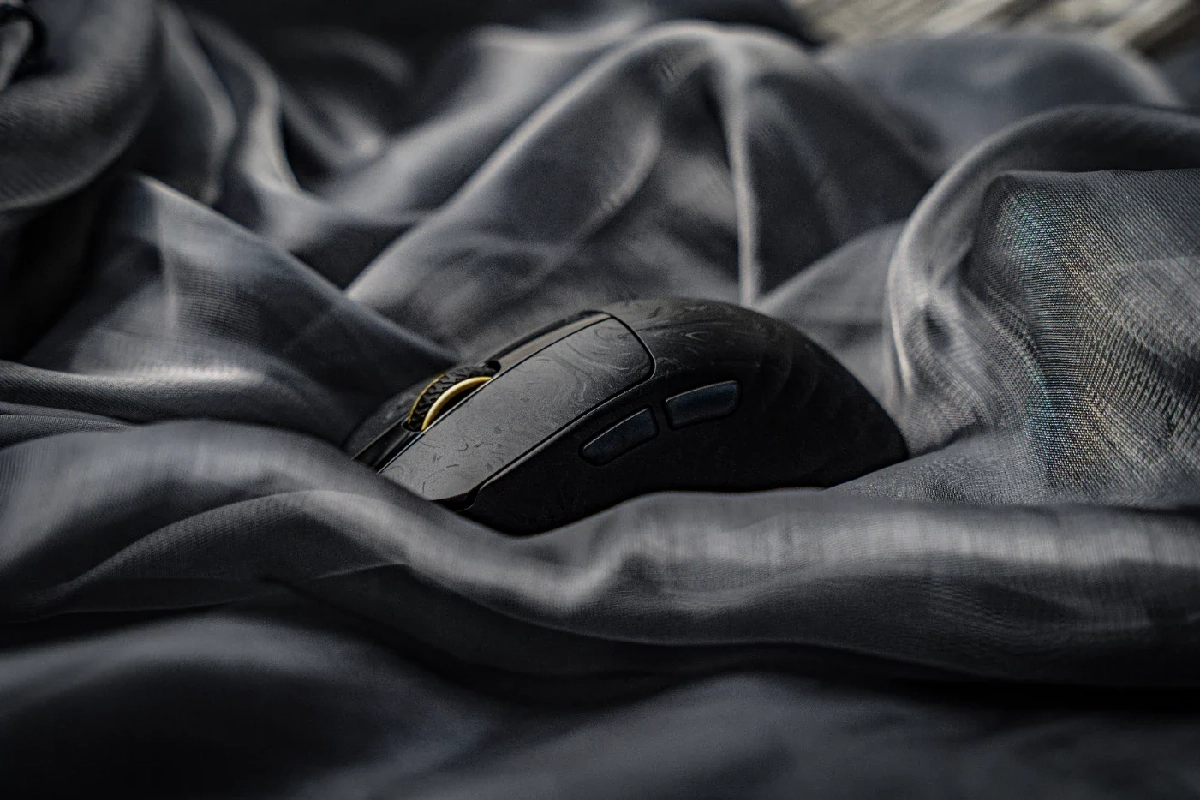
The look is something else entirely. The carbon weave creates a swirling pattern that I’ve genuinely never seen on a mouse before.
It almost reminds me of Damascus steel or the pattern on a samurai sword. It’s a really cool, premium effect that catches the light in a nice way.
The shell also has a laser matte texture that’s marketed as fingerprint resistant and sweat resistant. I don’t tend to get very sweaty during gaming, and I never had any issues with the mouse feeling slick or hard to hold.
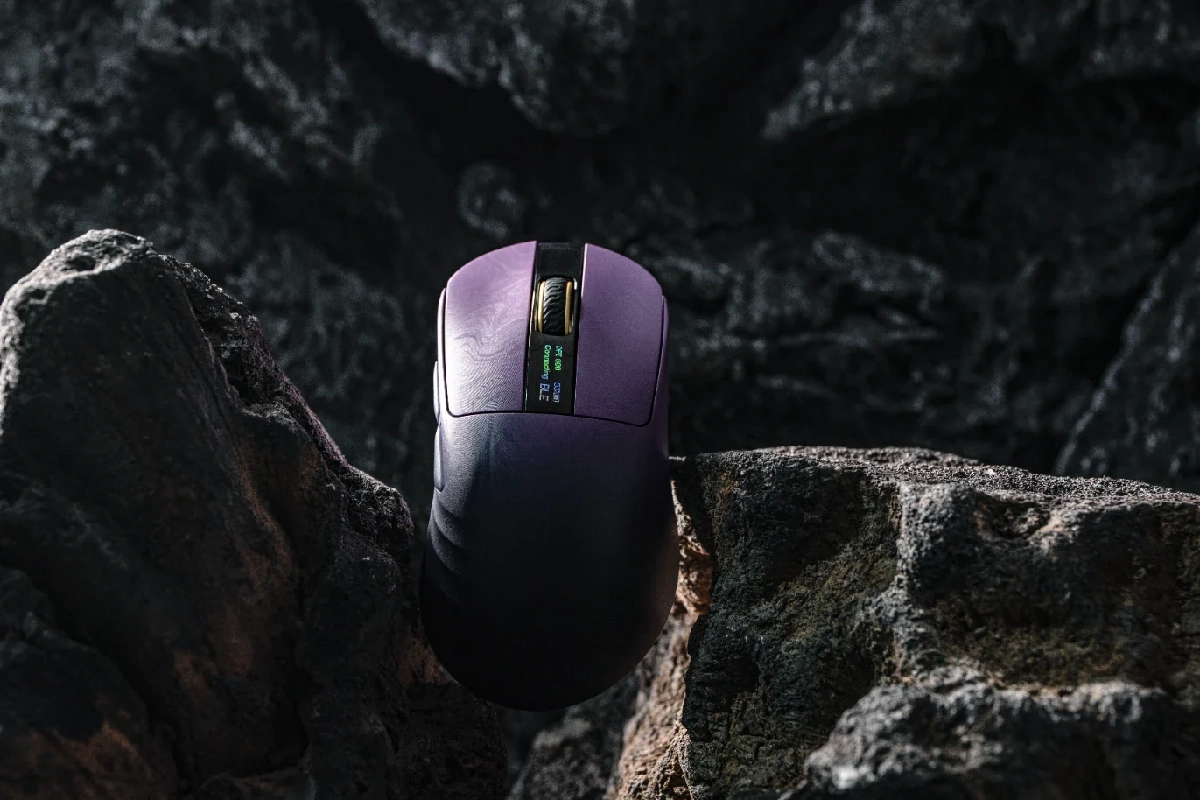
The Carbonis comes in a couple of gradient colorways, including a Black Gold and the Purple Black version I received. If I’m being honest, I much prefer the look of the solid black option, but that’s purely personal taste and not a knock on the build.
One last thing worth mentioning here is the packaging. It has a genuinely premium feel, almost like opening a new iPhone, which is a nice touch for the price.
The Smart LCD Screen Is a Genuinely Cool Touch
Here’s the feature I keep showing people. There’s a tiny LCD screen built right into the top of the mouse near the thumb.
It displays your battery percentage, current DPI, polling rate, and connection mode all at a glance. I’ve never seen anything quite like it, and it turns out to be way more useful than I expected.
The screen is made of glass and measures just under 22mm wide, so it’s small but perfectly readable. Being able to glance down and instantly know your exact DPI or how much battery you’ve got left is surprisingly handy.
No more diving into software or guessing which DPI stage you’re on. It’s all right there on the mouse.
EPOMAKER also thought about battery drain, which I appreciate. The screen shuts off while you’re moving the mouse and lights back up after a few seconds of idle time.
That means it’s not constantly burning through your charge just to show you info you only need occasionally. It’s a smart little implementation of what could easily have been a gimmick.

Sensor, DPI and In-Game Performance
Under the hood, the Carbonis is running a flagship PixArt PAW3950 sensor paired with a Nordic 54L MCU. This is genuinely high end stuff, the kind of hardware you’d find in mice that cost a lot more.
Together they deliver a native 8000Hz polling rate, with options stepping through 1000, 2000, 4000 and 8000Hz. Higher polling means the mouse reports its position to your PC more often, which translates to smoother and more responsive tracking.
Latency is excellent across the board. You’re looking at around 0.3ms in wired mode and roughly 0.375ms over 2.4GHz wireless, plus a tracking ceiling of 750 IPS.
In plain terms, this mouse is fast and accurate, and it never once felt like it was lagging behind my hand. For competitive FPS and MOBA style games, that responsiveness really matters.
The DPI side is just as flexible. There’s a dedicated DPI button on the bottom of the mouse that cycles through six preset stages: 400, 800, 1600, 3200, 6400 and 30000.
After plenty of testing, I settled on 1600 DPI as my personal sweet spot. It felt just right for everyday use and gaming alike.
The extremes are wild. At 30,000 DPI the cursor moves insanely fast, faster than I’ve ever seen, while 400 DPI is super slow but probably perfect for lining up precise headshots in an FPS.
It’s worth checking the manual too, because there are button combinations that unlock finer control over both DPI and polling rate. If the presets aren’t exactly what you want, you can dial things in more precisely.
Out in the real world, the Carbonis has been a joy. In something like Doom Eternal it feels fantastic, keeping up perfectly with that game’s frantic, fast paced combat.
And in Path of Exile 2, which is my main game at the desk right now, it’s been excellent. The precision and light weight make a real difference during long mapping sessions.

Clicks, Side Buttons and Everyday Feel
The main buttons are a treat. The left and right clicks feel great, with a satisfying press and a click sound that’s crisp without being obnoxiously loud.
The two extra side buttons are where things get really nice for gaming. They feel responsive, and crucially, they just work.
When I went to configure controls in several different games, every single one recognized the side buttons right out of the box. That sounds basic, but it absolutely isn’t.
With a lot of other mice, I’ve had to open the manufacturer’s software, map a side button to some random keyboard combination, then set that same combination inside the game. It’s a tedious workaround that I’ve come to expect.
The Carbonis skips all of that nonsense. In a game like Path of Exile 2, where I want to bind secondary skills to those buttons, they were instantly detected and ready to go.
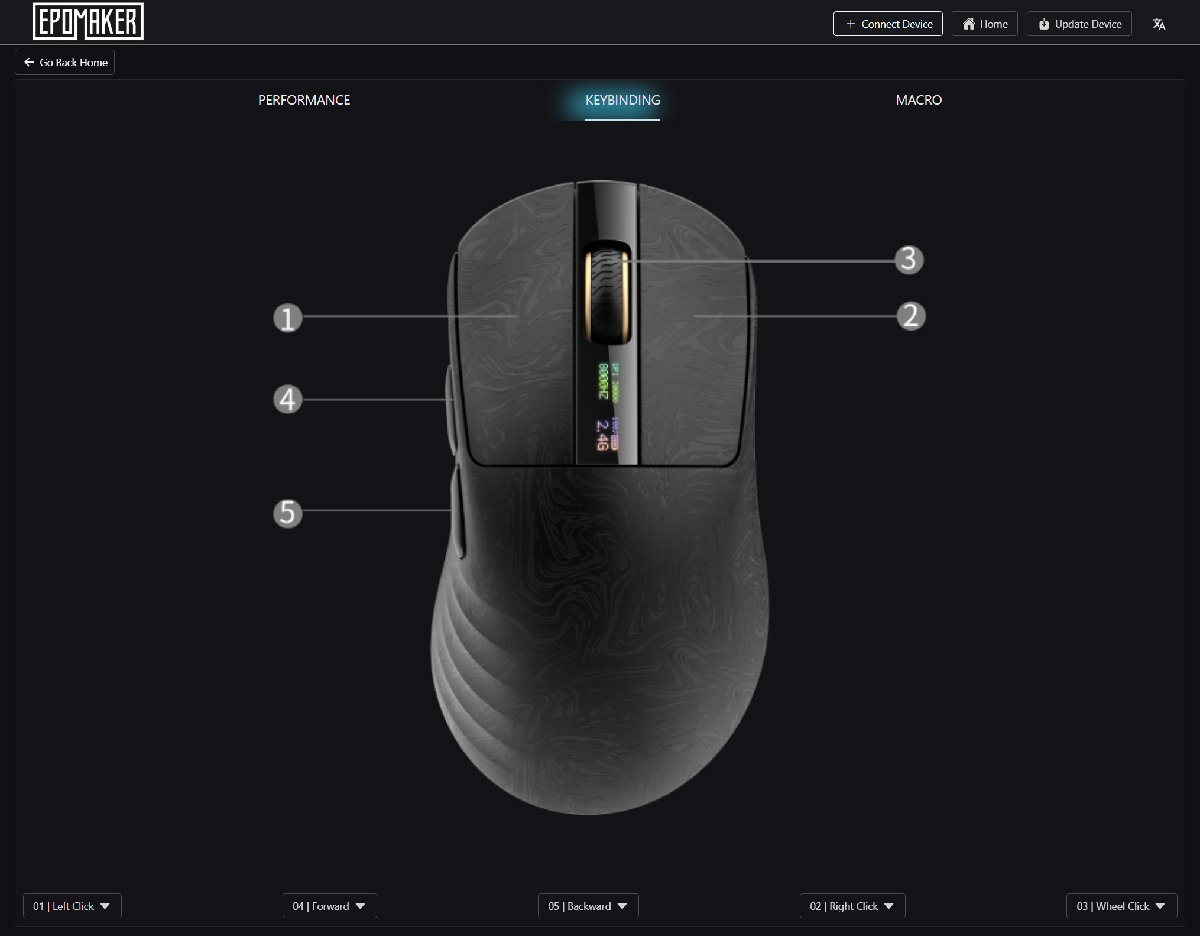
For reference, the Carbonis has five programmable buttons in total, with the left click reserved. That’s plenty for mapping skills, macros and shortcuts.
Tri-Mode Connectivity and Fast Charging
Connectivity is one of the Carbonis’s strongest areas. It offers full tri-mode support: 2.4GHz wireless, Bluetooth 5.0, and wired USB-C.
The 2.4GHz wireless mode is the one to use for gaming, and EPOMAKER includes a clever solution for it. There’s a small 2.4G dongle that connects to the included cable.
This matters more than you’d think. My PC tower sits way off to the side of my office, and a dongle plugged directly into the back of the tower often won’t hold a solid 2.4G connection at that distance.
Being able to extend the dongle much closer to the mouse using the cable completely fixes that problem. It’s a thoughtful touch for awkward desk setups like mine.
Bluetooth 5.0 mode works great too and is perfect for low key use, though note that Bluetooth caps the polling rate at 125Hz. For serious gaming you’ll want 2.4G or wired.
Charging is genuinely fast. The 300mAh battery tops up to a full charge in about one hour over USB-C.
There is one quirk I ran into that’s worth flagging. When you plug the mouse in with the USB cable, it defaults to USB wired mode rather than staying in Bluetooth.
For most people this is a non issue, because the cable usually runs straight to your PC and you just keep gaming in wired mode while it charges. My setup is the exception.
I normally charge devices by plugging into a USB port on the underside of my monitor, since it’s much closer than my distant tower. That port only delivers power and isn’t connected to my PC, so the mouse drops into USB mode and stops working.
It’s a very niche situation, and it only bites you if you charge from a power only port and expect Bluetooth to stay active. Worth knowing, but it won’t affect most users.
Browser-Based Software, No Download Needed
EPOMAKER’s customization software is one of my favorite things about this whole package. Instead of forcing you to install a desktop app, the entire thing runs in your web browser.
I cannot overstate how much I appreciate this. I’ve currently got two separate Logitech programs and a Razer app installed on my machine right now, and less application bloat is always a good thing.
The software itself is surprisingly deep.
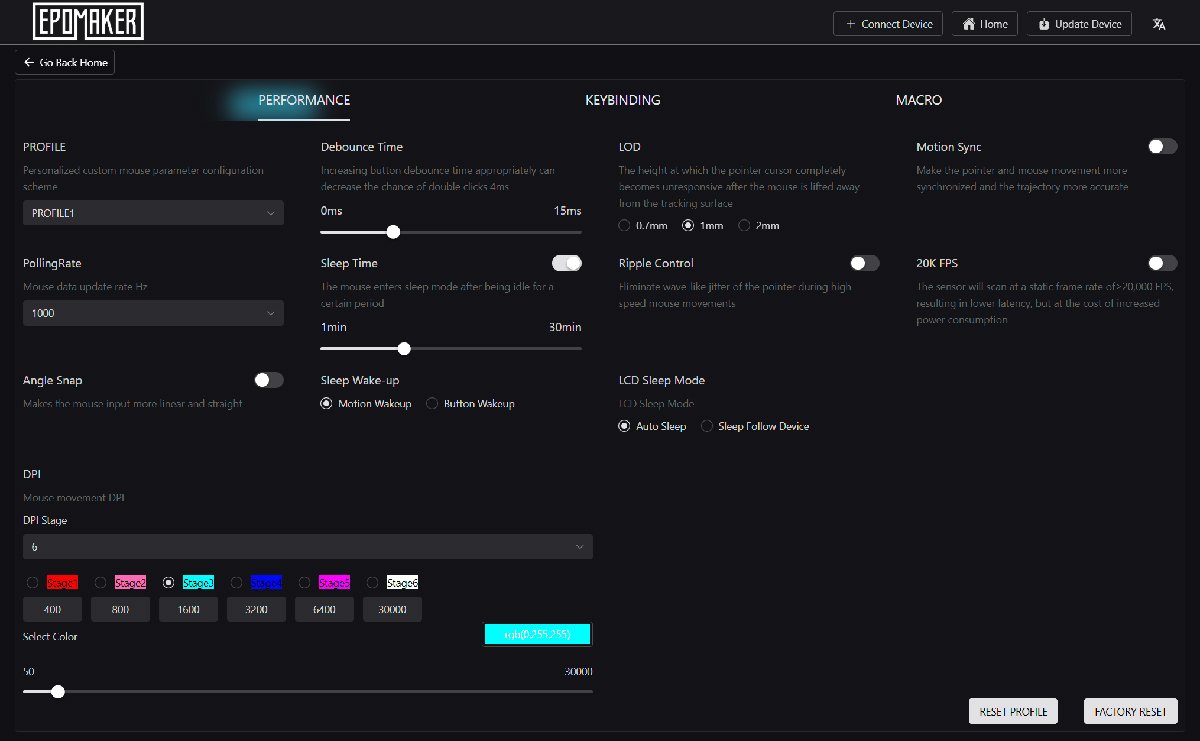
There’s a performance tab loaded with settings I didn’t even realize I needed, covering things like lift off distance, sleep mode and motion sync.
There’s a keybinding tab where you can assign exactly what each button does.
And there’s a macro tab that lets you record your own macros, which opens up a ton of customization options.
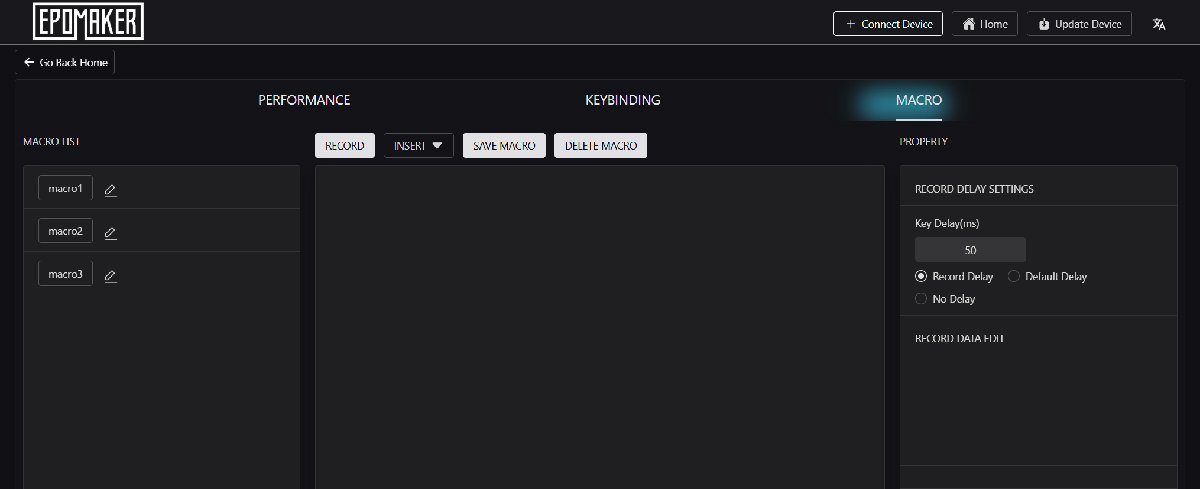
One small heads up so you don’t get tripped up like I did. You have to plug the mouse into your computer with the USB cable for it to show up in the software.
It won’t recognize the mouse over wireless, and it took me a minute to figure that out.
Once it’s connected, everything works smoothly. For best results, EPOMAKER recommends using a Chrome based browser.

What’s in the Box
EPOMAKER didn’t skimp on the extras, and the unboxing experience feels appropriately premium. The included accessories actually add real value.
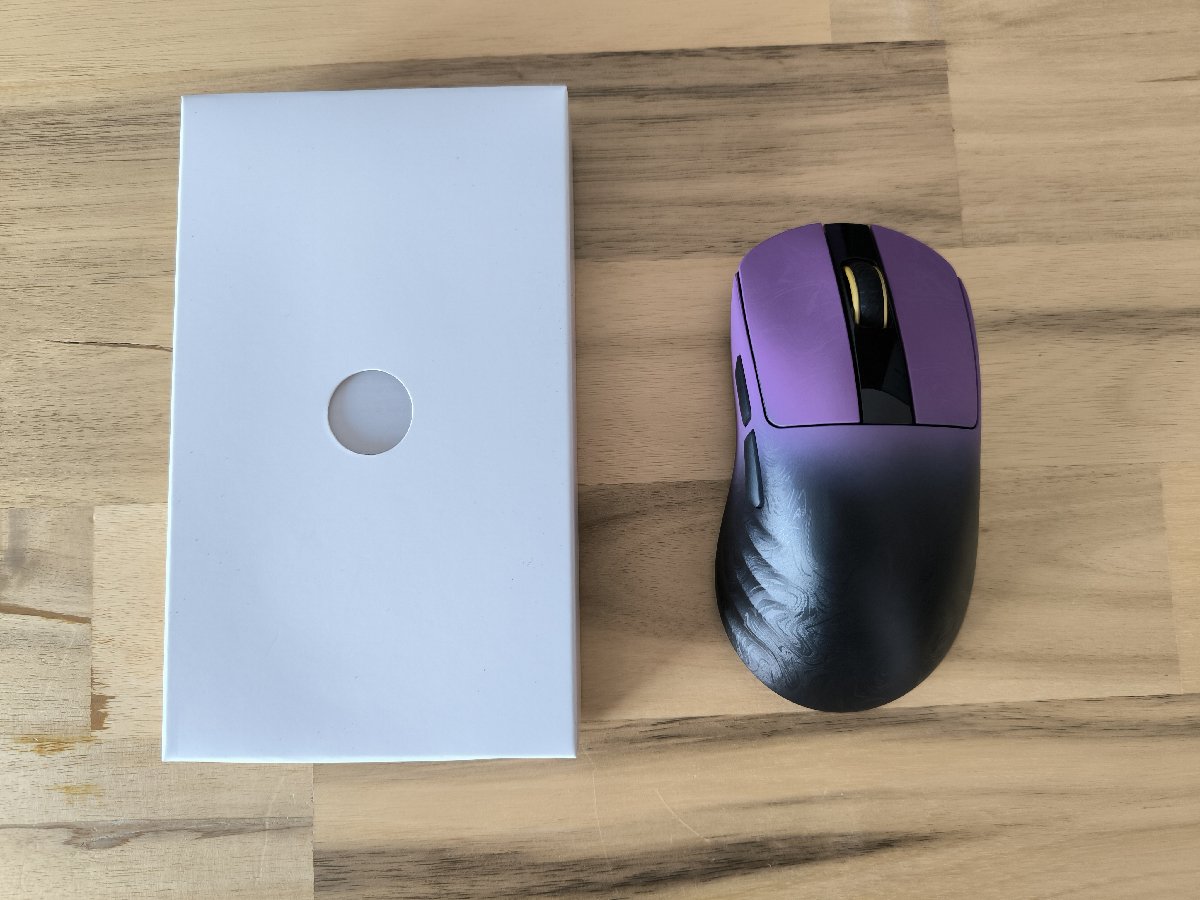

First up is the USB-C cable, which is honestly one of the nicest cables I’ve ever seen bundled with a product. It feels great and doesn’t drag during wired play.
Then there’s the 2.4G dongle extender I mentioned earlier, which lets you move the wireless receiver right up next to your mouse. For anyone with a tucked away tower, this is a small lifesaver.
One part that really impressed me was the included replacement skates for the bottom of the mouse. I’ve never seen a mouse ship with spare feet before.
If you use your mouse heavily across different surfaces, those skates will eventually wear down and get scratched up. Having a spare set in the box is a thoughtful, genuinely useful inclusion.

The Verdict
After living with the EPOMAKER Carbonis for a good while, I’m thoroughly impressed. This is a seriously well built, feature rich gaming mouse that gets the fundamentals right and then piles on extras like that brilliant LCD screen.
The standout qualities are obvious.
It’s ridiculously light, the carbon fiber shell looks and feels premium, the PAW3950 sensor is fast and precise, and the side buttons working natively out of the box is a small joy every single time.
Throw in the browser based software, the fast charging, the clever dongle extender, the spare skates, and the at-a-glance LCD, and you’ve got a package that feels carefully thought out.
The only real negatives I hit were the purple colorway being less to my taste than black, and that niche USB-mode charging quirk.
On price, the Carbonis runs around $89.99. That’s a little on the higher side, but it’s far from crazy for what you’re getting.
If you’ve got a little extra money and you’re looking for genuine quality, it’s absolutely worth the price. You’re paying for flagship internals and a build that backs it up.
A quick note on fit. The Carbonis is a right handed only mouse shaped for medium to large hands, with no left handed version available.
I have fairly large hands and I’m right handed, and it feels great for me. If you’re left handed, this one unfortunately isn’t an option.
So where does it land in my own setup?
It’s not going to replace the MX Master 4 as my daily productivity mouse, but then it was never designed to.
What it has become is my main gaming mouse.
As long as I’m grinding through Path of Exile 2 at my desk, the Carbonis is the mouse I’m reaching for, and I don’t see that changing any time soon.
The EPOMAKER Carbonis mouse is available on Amazon here.
–
Images in this article are either photographed by the author, screenshots captured by the author or images from the official EPOMAKER website used under Fair Use.
Want to start your own blog, a personal website or something for your small business or side hustle? Site Ground is the absolute best web hosting company out there
You Might Also Like...
Mouse Polling Rate 1000 vs 2000 vs 8000 Explained (What It Really Changes, and What to Use)

Mouse polling rate is one of those settings that sounds insanely importan (like flipping from 1000 Hz to 8000 Hz should instantly turn you into an esports god) but in real life it’s more nuanced. If…
How to Force Borderless Fullscreen in PC Games (Every Method That Actually Works)
If you've ever tried to alt-tab out of a PC game and watched your screen freak out for a solid five seconds, you already know why borderless fullscreen mode exists. It's the sweet spot between…
How to Fix Xbox Controller Not Detected on Windows 11
So you've sat down for a gaming session, grabbed your Xbox controller, and… nothing. Windows 11 acts like it doesn't exist. No vibration, no light, no input. Don't worry, you're not alone, and this…
Japanese Rural Life Adventure: Beginner Tips You Need to Know

Japanese Rural Life Adventure has finally made the jump from Apple Arcade to Steam, and if you're a fan of cozy farming sims like Stardew Valley or Harvest Moon, this one absolutely deserves a spot…
Under the Island Tips: The Ultimate Beginner’s Guide to Seashell Island
If you're just stepping onto Seashell Island for the first time, you're in for a treat. Under the Island is a 2D top-down action-adventure that wears its classic Zelda inspiration proudly, mixing…
Retrace the Light Tips: A Beginner’s Guide With Puzzle, Combat, and Exploration Tricks

If you’re looking for Retrace the Light tips or a quick beginner’s guide to Retrace the Light, the biggest thing to know is this: the game is built around a mindset shift. It’s not just “solve…
18 Indie Games that are Better than Most AAA Major Releases
Last updated December 31, 2025. There's been a massive explosion of amazing indie games in recent years. Having an alternative to the massive AAA games is always a good thing and many of these indie…
All Unicorn Overlord Characters: Recruitment Guide, Builds, and Missables
This master post rounds up every recruitable character in Unicorn Overlord, with an alphabetical list linked to a detailed guide for each character. You’ll also find practical tips on recruiting,…
The Top 10 Nintendo 64 Games You Need to Play
The Nintendo 64 launched after the Super Nintendo in 1996 and was Nintendo's first console with fully 3D 64-bit graphics. It's one of the most famous and well-recognized systems in videogame history,…
Golden Sun Djinn Guide and Djinn Location Guide
The Djinn system in the Game Boy Advance classic, Golden Sun, introduces a novel and intricate layer to the traditional RPG formula, setting it apart from its contemporaries. This system not only…
The Top 10 Super Nintendo Games You Still Need to Play
The Super Nintendo Entertainment System (SNES) is a legendary video game console that holds a special place in the hearts of gamers around the world. Released by Nintendo in 1990 (in Japan) and 1991…