
EPOMAKER sent over their TH80 V2 PRO for review, and it showed up packing more features than most keyboards at twice the price.
This is a compact 75% wireless mechanical keyboard with a tiny screen, a giant battery, and enough RGB to light up your whole desk.
It sells for $77.99 on EPOMAKER’s site, which lands it in the affordable zone for a mechanical board without being dirt cheap.
I spent a few weeks living with it, gaming on it, and poking at every feature. Here’s how it held up.
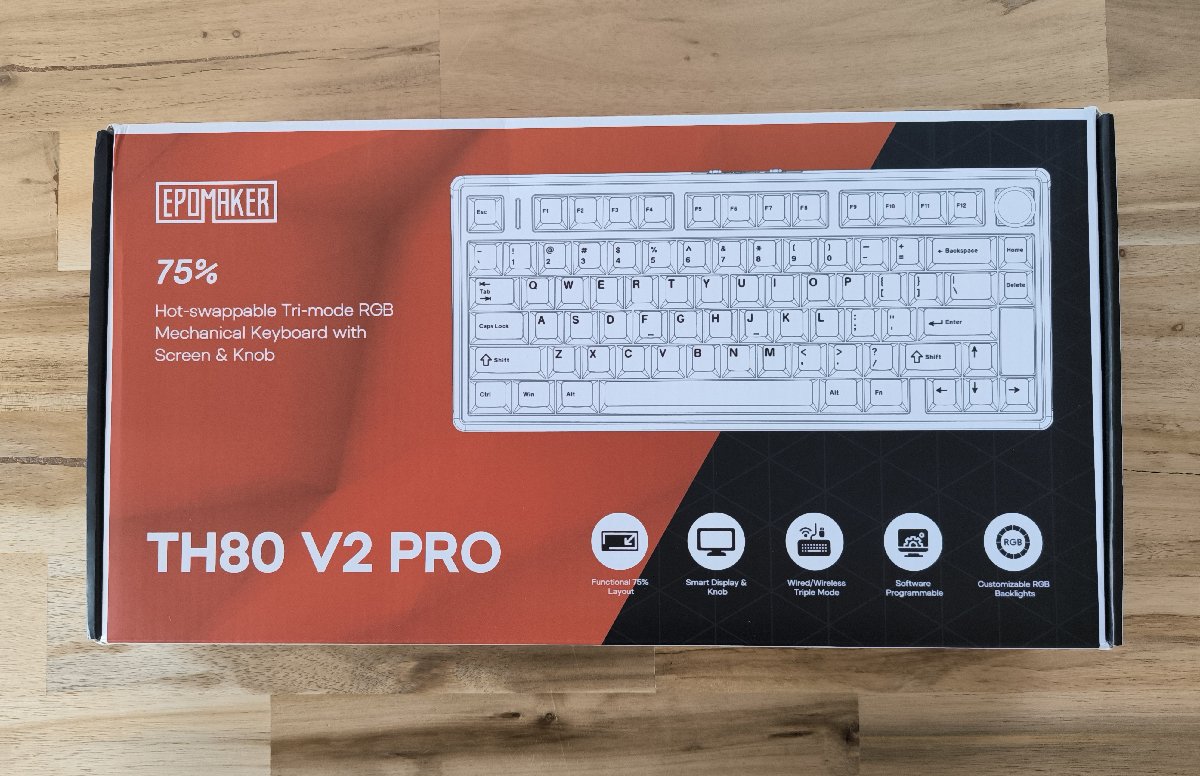
What’s in the box
You get the keyboard, a really nice braided USB-A-to-C cable, and a 2-in-1 tool for pulling both keycaps and switches.

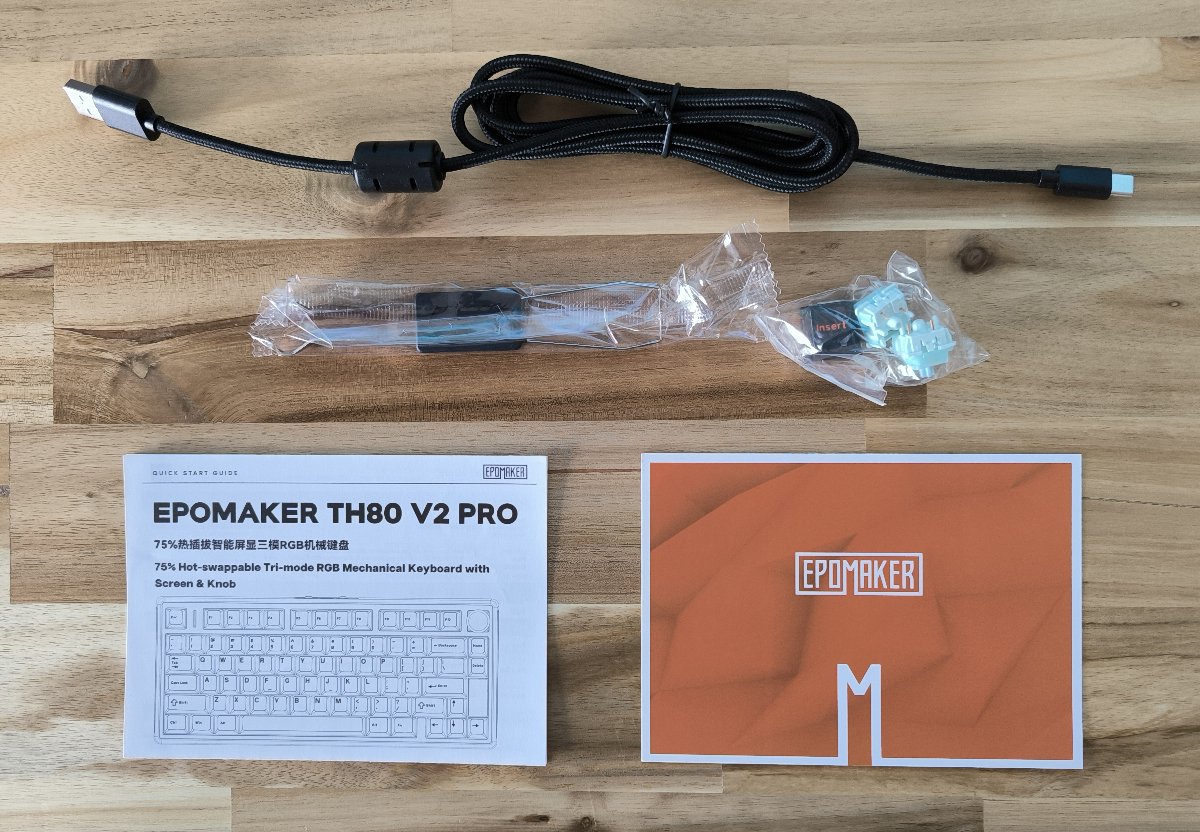
There’s also an extra Insert keycap in case you’d rather have that key than the knob, which I’ll get to later.
The part that surprised me most was the two spare switches. I’ve never seen a keyboard ship with replacement switches before, and it’s a genuinely smart thing to include in case one ever gets damaged.
More brands should do this. It costs them almost nothing and it means you’re never stuck with a dead key and no easy fix.

Build, design, and the gamer aesthetic
The TH80 V2 PRO is built around a thick ABS plastic shell, and it feels sturdy without being a brick. At 0.95kg it sits right in the middle on weight, solid on the desk but not a pain to move.
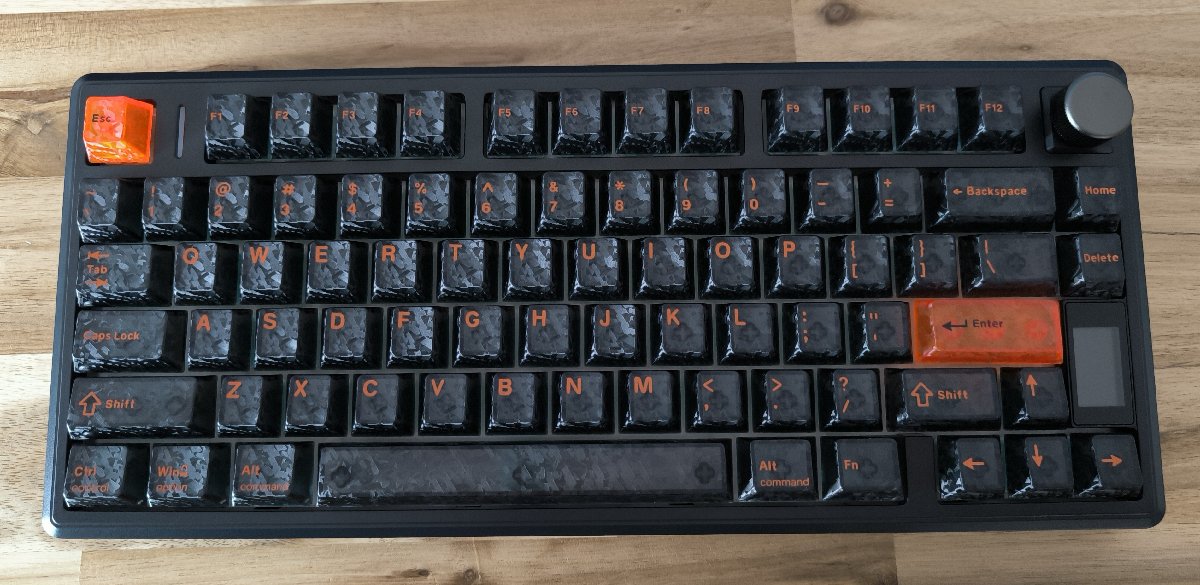
My unit is the black version, and the keycaps have a subtle brushed texture to them. It’s a neat effect under the fingers, and it’s specific to the black colorway, since those caps are PC plastic with dye-sub legends rather than the smoother PBT on the white and pink models.
I didn’t have any trouble typing because of the texture, and I’m honestly not sure whether it’s meant to help your fingers grip or glide. Either way, it gives the board a distinct feel.
The one design choice I’m not sold on is the orange lettering on the keys. That’s purely personal taste, and the good news is the keycaps pop right off if you’ve got a set you like better.
Where this keyboard really commits is the RGB. There’s per-key lighting plus ambient side lighting on both edges that mirrors whatever effect you’ve set on the keys.
It’s very much a gaming keyboard with a gaming look, which isn’t really my thing to be completely honest, but if that’s what you want, you’ve got loads of effects to play with. It makes a great centerpiece if you’re going for that vibe.
Underneath, the adjustable feet give you three height positions to pick from. I settled on the small feet for the mid height, which felt best for my wrists.
There’s also a clever touch tucked away down there. The 2.4GHz USB dongle hides under one of the feet, so it’s always with the keyboard if you want to use it instead of Bluetooth or a cable.
The Creamy Jade switches and how it feels to type
I got the Creamy Jade switches, and they feel amazing. They might be my new favorite switch out of everything I’ve tried.
These are linear, pre-lubed switches with a 45g actuation force and a 50g bottom-out, so they’re smooth all the way down with no tactile bump. Total travel is about 3.6mm, which feels nice and deep.
The reason they sound so good comes down to what’s inside the case.
EPOMAKER uses a gasket-mount structure with a five-layer dampening stack plus a flex-cut PCB and plate.
All of that adds up to a soft, cushioned typing feel and a deep, satisfying thock on every keystroke.
The keycaps are in the ergonomic Cherry profile, which keeps your fingers comfortable over long sessions.
The board is also hot-swappable and takes both 3-pin and 5-pin switches. So if the Creamy Jades aren’t your taste, you can swap in something else in seconds, no soldering needed.

The LCD screen and the knob
One of the standout features is the small 1.06-inch glass screen built into the corner. It shows your battery percentage, the time and date, and little status bits like whether caps lock is on.
Having a real battery indicator is great. Most keyboards I’ve used just blink a red low-battery warning and tell you nothing else, so an actual percentage is a treat.
I ended up loving the clock too. My PC has this bizarre habit where windows sometimes sit in front of the taskbar and cover the clock in the corner, and glancing down at the keyboard is a quick fix I didn’t know I wanted.
You can also set the screen to show your RGB settings or even your own GIFs.
It’s a cute feature that I’d personally never touch, but someone a fair bit younger than me would probably have a blast with it.
There is one tradeoff worth knowing. The screen sits where the Page Up and Page Down keys would normally go, and there’s no dedicated End key either.
If you rely on those, you’ll want to plan for it. The good news is all three live on the FN layer, mapped to FN + J, K, and L and you can always customize that with their software.
In the top right corner of the keyboard above the screen is a metal volume knob.
By default it controls system volume, and it’s a lovely way to do it, but I run external speakers and keep my PC volume maxed, so I’ll never really use it for that.
It’s more useful to me for adjusting RGB brightness on the fly.
I couldn’t find a way to program it to do anything beyond that, and since I didn’t need more, I left it alone.
If the knob isn’t for you, this is where that spare Insert keycap comes in. You can pop the knob out and drop the Insert key in its place.
Software and customization
The configuration software runs in your browser, so there’s nothing to install. I really appreciate that approach, and it’s the same setup I liked on the EPOMAKER Carbonis mouse.
It covers everything you’d expect. There’s full key remapping, a macro recorder, and complete control over the lighting, which is far easier here than fiddling with shortcuts on the keyboard itself.
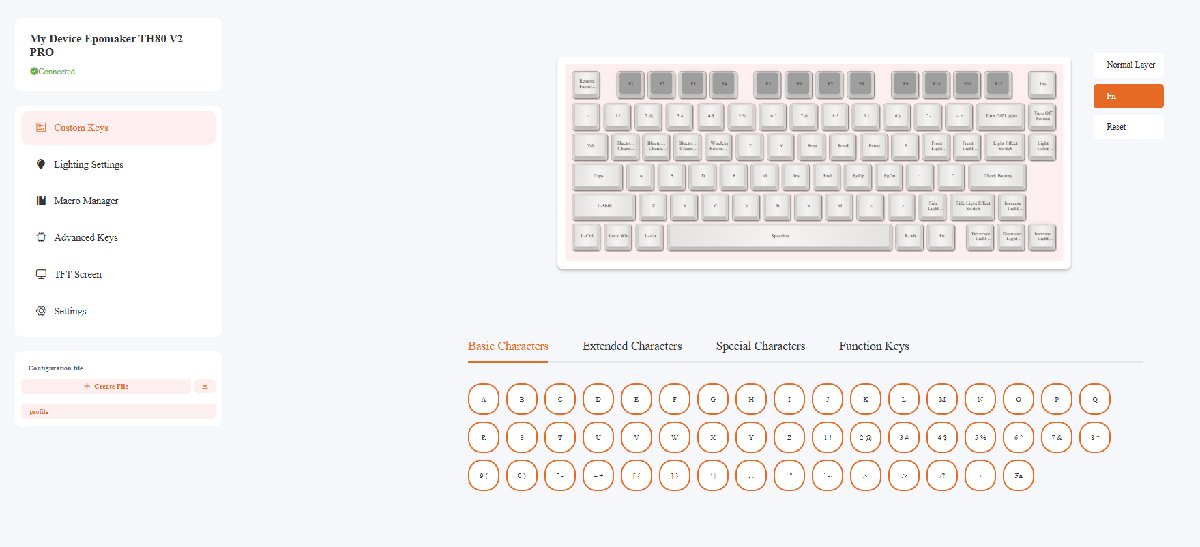
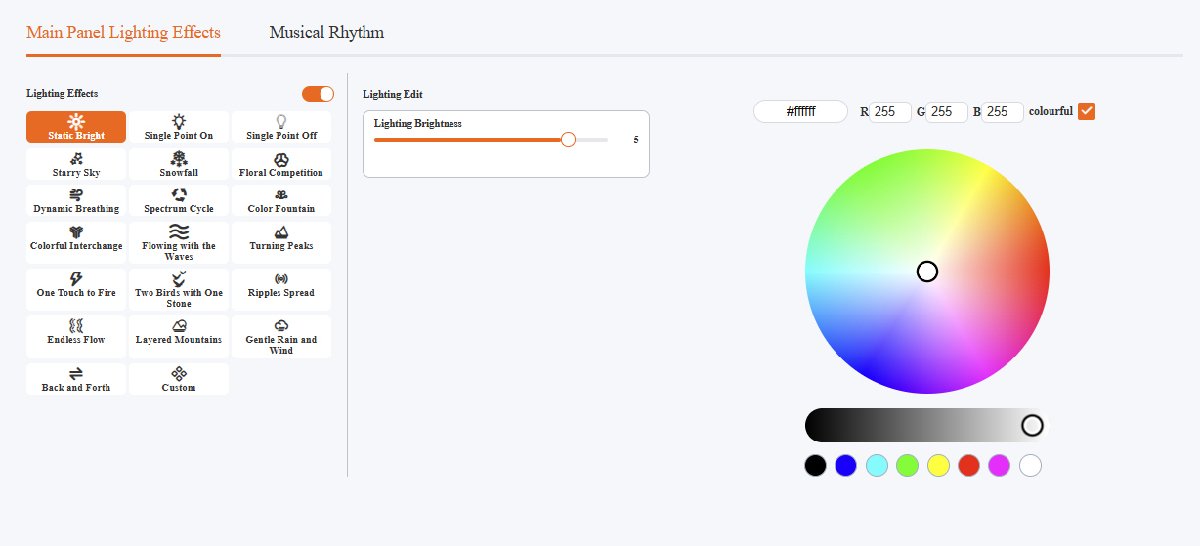
You can dial in exact colors and RGB values, and you can customize what the screen displays with plenty of options.
A small thing that made me smile: the lighting effects clearly have their names translated from Mandarin, so they read like little poems. “Flowing with the Waves,” “Gentle Rain and Wind,” and “Ripples Spread” are all real effect names, and they’re charming.
When you’ve got everything set the way you like, you can save a configuration file and download it to your computer.
That way your settings survive a reset, or you can carry them over to another board.
One quirk to remember: you have to plug the keyboard in and set it to Bluetooth mode for the software to recognize it. Once you know that, it’s smooth going.
Battery life
The headline number here is the 10,000mAh battery, which is enormous for a keyboard this size. EPOMAKER rates it at 200+ hours of wireless use with the RGB off.
My experience backs that up. I’ve been running it for a couple of weeks with the RGB turned off, and it’s still sitting at around half capacity.
That’s a different league from most wireless boards, which usually want charging every week or so. You also get play-and-charge over the detachable USB cable, so a low battery never stops you.

Connectivity and gaming performance
The TH80 V2 PRO runs tri-mode wireless, meaning you can connect over 2.4GHz, Bluetooth, or a wired USB-C cable. It remembers up to five paired devices and works with both Mac and Windows.
I did most of my gaming over Bluetooth, mainly in Path of Exile 2 since that’s eating up my time right now, plus a few other random things. I didn’t notice any latency or hiccups at all.
I’m not a hardcore competitive player, so take my impressions in that spirit.
If you are, the spec sheet lists 2ms low latency, a 1K polling rate, and full anti-ghosting, and you always have the option to plug in wired for the lowest possible delay.

The verdict
The TH80 V2 PRO is a lot of keyboard for $77.99. You’re getting a gasket-mounted board with great switches, a huge battery, a handy little screen, hot-swap support, and tri-mode wireless, all for under eighty bucks.
I think it’s best suited to a teenager after a solid, affordable gaming keyboard.
They’ll have a ton of fun with the RGB effects and the customizable screen, and they’ll be getting a board that’s genuinely good to game and type on underneath all the flash.
For me, it’s not quite my style.
I lean toward a more minimalist look, so the heavy gamer aesthetic and the orange legends aren’t where my taste sits.
What I do love are the Creamy Jade switches. They’re so good that I’m tempted to pull them out, since they’re hot-swappable anyway, and use them to build a different keyboard down the line.
If the look fits your setup and you want a feature-packed board without spending into triple digits, the TH80 V2 PRO is an easy one to recommend.
At this price, it gives you more than most of its competition.
–
Images in this article are either photos taken by the author or from the EPOMAKER website and used under Fair Use.
Want to start your own blog, a personal website or something for your small business or side hustle? Site Ground is the absolute best web hosting company out there
You Might Also Like...
Mouse Polling Rate 1000 vs 2000 vs 8000 Explained (What It Really Changes, and What to Use)

Mouse polling rate is one of those settings that sounds insanely importan (like flipping from 1000 Hz to 8000 Hz should instantly turn you into an esports god) but in real life it’s more nuanced. If…
How to Force Borderless Fullscreen in PC Games (Every Method That Actually Works)
If you've ever tried to alt-tab out of a PC game and watched your screen freak out for a solid five seconds, you already know why borderless fullscreen mode exists. It's the sweet spot between…
How to Fix Xbox Controller Not Detected on Windows 11
So you've sat down for a gaming session, grabbed your Xbox controller, and… nothing. Windows 11 acts like it doesn't exist. No vibration, no light, no input. Don't worry, you're not alone, and this…
Japanese Rural Life Adventure: Beginner Tips You Need to Know

Japanese Rural Life Adventure has finally made the jump from Apple Arcade to Steam, and if you're a fan of cozy farming sims like Stardew Valley or Harvest Moon, this one absolutely deserves a spot…
Under the Island Tips: The Ultimate Beginner’s Guide to Seashell Island
If you're just stepping onto Seashell Island for the first time, you're in for a treat. Under the Island is a 2D top-down action-adventure that wears its classic Zelda inspiration proudly, mixing…
Retrace the Light Tips: A Beginner’s Guide With Puzzle, Combat, and Exploration Tricks

If you’re looking for Retrace the Light tips or a quick beginner’s guide to Retrace the Light, the biggest thing to know is this: the game is built around a mindset shift. It’s not just “solve…
18 Indie Games that are Better than Most AAA Major Releases
Last updated December 31, 2025. There's been a massive explosion of amazing indie games in recent years. Having an alternative to the massive AAA games is always a good thing and many of these indie…
All Unicorn Overlord Characters: Recruitment Guide, Builds, and Missables
This master post rounds up every recruitable character in Unicorn Overlord, with an alphabetical list linked to a detailed guide for each character. You’ll also find practical tips on recruiting,…
The Top 10 Nintendo 64 Games You Need to Play
The Nintendo 64 launched after the Super Nintendo in 1996 and was Nintendo's first console with fully 3D 64-bit graphics. It's one of the most famous and well-recognized systems in videogame history,…
Golden Sun Djinn Guide and Djinn Location Guide
The Djinn system in the Game Boy Advance classic, Golden Sun, introduces a novel and intricate layer to the traditional RPG formula, setting it apart from its contemporaries. This system not only…
The Top 10 Super Nintendo Games You Still Need to Play
The Super Nintendo Entertainment System (SNES) is a legendary video game console that holds a special place in the hearts of gamers around the world. Released by Nintendo in 1990 (in Japan) and 1991…